Simple way to show important notes to user

Explore, Show Notes Plug-in...

About Plug-in

Show Notes plug-in is developed to show important notes to user like disclaimers, privacy policy, glossary, full name of short hand words etc. with that you can easily show important notes to user that you wanted user to see / guide.

You can show notes in 4 different ways like show notes as Jump to Note, Tooltip, Modal window, Fullscreen modal window. There are various animation effects through CSS for Modal window (15) & Fullscreen modal window (7) options.

Go through plug-in options, examples, features to get more idea how it can be useful for your requirement.

Also don’t forget to go through other awesome jQuery plug-ins I have posted on codecanyon.
Documentation

Plug-in Options

How to Setup?

  1. Insert the jQuery elements in your document's <head> section, e.g.: Add jQuery library to HTML page
  2. Insert the Plug-in CSS in your document's <style> section

    <link href="css/show-notes-style.css" rel="stylesheet" type="text/css" />
  3. Insert the Plug-in JS in your document's <script> section

    <script src="js/jquery.showNotes.min.js" type="text/javascript" language="javascript"></script>
  4. Define plug-in options for showNotes. e.g. notesContainerEl, showNoteStyle, jumpToNotesContainer, eventType, showWithAnimate, showDuration, modalOpenType, modalNotesTitle

    $('#id-of-div').showNotes({
            notesContainerEl: '#notes-container',       // Unique disclaimer container id
            showNoteStyle: 'tooltip',                         // Options available are 'tooltip', 'jump', 'modal', 'fullscreen'       
            jumpToNotesContainer: false,                 // Option for showNoteStyle: 'jump'       
            jumpToNotesTopMargin: 0,                     // Add top margin to bring user to selected note
            eventType: 'click',                                  // 'click' or 'hover'. Option for showNoteStyle:'tooltip'. For showNoteStyle: 'jumpto', 'modal' & 'fullscreen' only click is enabled
            showWithAnimate: false,                       // Jump on notes section with animation. Option for showNoteStyle:'jump', modal' & 'fullscreen'. Not applicable for shoNoteStyle: 'tooltip'
            showDuration: 1000,                             // Option for showNoteStyle:'tooltip'. Tooltip show duration
            modalOpenType: 'fade-in-and-scale',      // Option for showNoteStyle:'modal' & 'fullscreen'. Open modal window with specified effect
            modalNotesTitle: ''                                // Modal window title
    });

Examples

With ShowNotes plug-in you can show important notes to user in 4 different ways. Tooltip [1], Jump to notes [9], Modal [4] or Fullscreen. [12]
Please note to view notes as mentioned in last statement, click on links just above this paragraph. e.g. For modal click on link showNoteStyle: 'modal' and same for other 3 effects.

You can use ShowNotes plug-in to show Privacy Policy, Terms of use, Disclaimers, Glossary or any other important notes that user should not miss on.

There are various effects to open modal and fullscreen window.

Effects for modal window [6]

Effects for fullscreen window [7]
  1. fade-in
  2. from-right-bottom-corner
  3. from-top
  4. scale
  5. door
  6. from-bottom
  7. from-bottom-scale
View All Demos

Plug-in Features

Features

  • Show Notes plug-in can be defined on anchor links to show important notes that you want to notify to user. Like disclaimers, glossary, privacy policy, terms of use etc.
  • There are 4 different ways you can show to use. Like tooltip, jump, modal, fullscreen.
  • Modal window can be open with 15 different cool CSS animation styles.
  • Fullscreen modal window can be open with 7 different cool CSS animation styles.
  • User can define more than / all style to open notes on single page.
  • User can apply different styles to modal, fullscreen modal, tooltip appearance on single page. You can write / inherite CSS classes.


Things to keep in mind

  • "notesContainerEl" is a must to give field; you have to give ID of a container where you have defined notes. Notes should be defined inside DIV in which you have initiated plug-in. e.g. $('#mydiv').showNotes({...}). notesContainerEl should be inside $('#mydiv')
  • Note: Modal window and Fullscreen modal window both has their separate animation open type/style.


Other Plug-ins

addDot - The jQuery Plug-in for Adding Hot Spots

About Plug-in

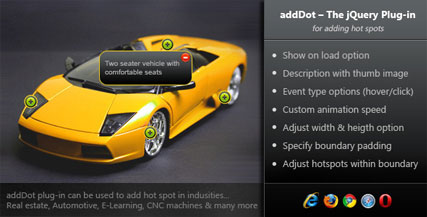
"addDot" plug-in is useful for adding a hot spot to show short description about specific portion of an image. User can also add thumb image in the description. Plug-in can be used in various industries like.

  • Real Estate - Building Image (Can show which floor has what facility)
  • Automotive - Tow/Four Wheeler (Short info about part of vehicle)
  • Medical Domain – Human Body (Describing various products that company have for specific part of human body)
  • Education – Human Anatomy
  • Factory Machinery – CNC Machines (Explaining which part does what when final product is out)

Purchase plug-in   l   View Demo

hoverOver - jQuery Plugin for Adding Hover Content

About Plug-in

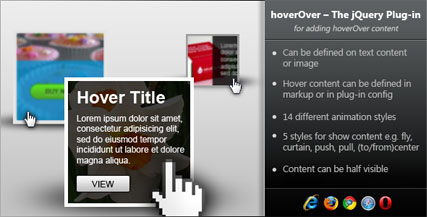
"hoverOver" plug-in is useful for showing content on image or text blocks to show short information related to product, image etc. Plug-in provides various animation effects to show content. Plug-in can be used in...

  • To show content on hover over image/text
  • To show zoom-in/info icon on image
  • To show CTA buttons on hover over overlay
  • To show title text in over lay and slide up on hover over

Purchase plug-in   l   View Demo

Show Image in Placeholder/Target Box - jQuery

About Plug-in

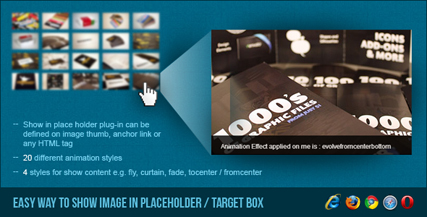
Show in Place Holder plug-in is developed to show an image to place holder / target box. Plug-in can be used to showcase image portfolios, product images, software screenshots or any dam thing that you want to display to place holder / target box by clicking / hovering image thumbs or anchor links.

  • Show in place holder plug-in can be defined on image thumb, anchor link or any HTML tag
  • You can define content text either in “content” option of plug-in initialization or define data-content=’#contentID’ and define content inside Content Goes Here
  • 20 different animation styles
  • 4 styles for show content e.g. fly, curtain, fade, tocenter/fromcenter

Purchase plug-in   l   View Demo